---
title: "Admin Console"
site: "Game8 Store – Developer Center"
lang: "en"
category: "Features"
canonical: "https://developers.store.game8.jp/en/admin/"
---
# Admin Console
📝 This is a reference translation. In case of any discrepancy, the Japanese version prevails.
In the Game8 Store admin dashboard, you can perform all the operations needed to run your store in one place — checking sales reports, searching orders, registering and editing items, and testing APIs.
The first half of this page covers each feature; the second half explains account permission settings.
## Admin Dashboard Features
### Monthly Report
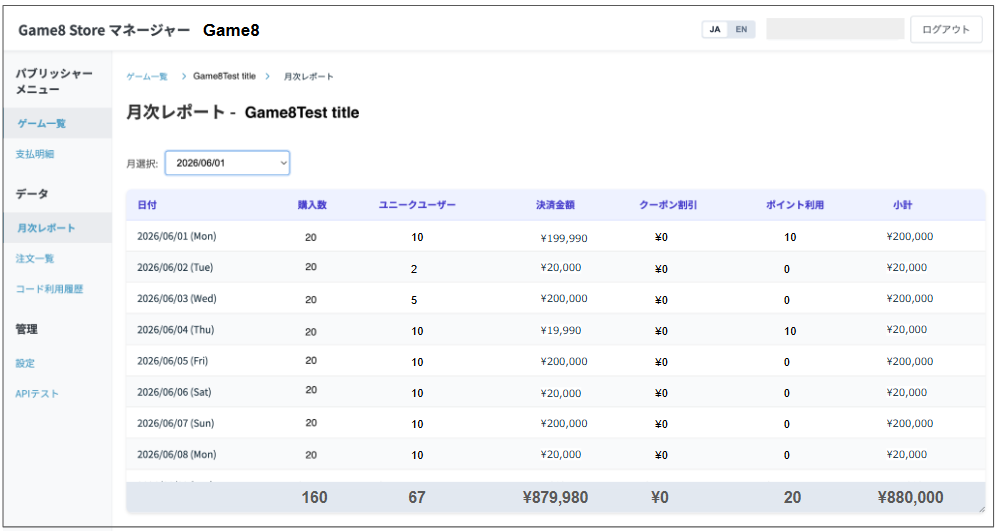
#### 1. Key Features and What You Can Do
- **Viewing daily sales performance**
- You can view detailed daily sales data for the selected month in a list. The following figures are available:
- Date
- Purchases
- Unique Users
- Payment Amount
- Coupon Discount
- Points Used
- Subtotal
- **Switching the displayed month (month selector)**
- Use the month selector menu at the top left of the screen to easily switch to the month you want to view.
### Orders
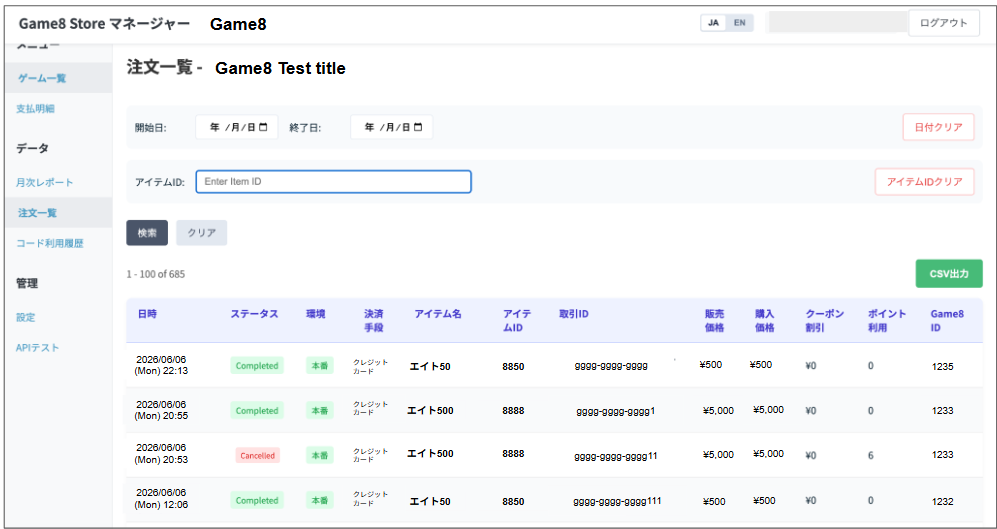
On the Orders screen, you can **view the history of all orders, search by specific criteria, and export order data to CSV** for orders placed through Game8 Store.
#### 1. Key Features and What You Can Do
- **Viewing order history**
- You can view all past orders (completed, cancelled, etc.) in a list.
- **Filter (search) functions**
- **Date search**: Specify a start date and end date to narrow the list to orders within a specific period.
- **Item ID search**: Enter a specific item ID to extract only the orders for that product.
- **Data export (CSV export)**
- You can download the displayed order data as a CSV file and use it for sales management and analysis in Excel or other tools.
#### 2. Screen Field Descriptions
Search and action area
| Field | Description |
| --- | --- |
| Start date / End date | Filters the list by date range. Select dates from the calendar icon. Click "Clear dates" to reset the selection. |
| Item ID | Enter the specific item ID you want to search for. Click "Clear Item ID" to reset the input. |
| Search button | Reloads the list using the specified date and item ID criteria. |
| Clear button | Resets all search criteria to their initial state. |
| CSV export button | Downloads the matching order list data in CSV format. |
**Order list table (contents of each column)**
| **Column** | **Description** |
| --- | --- |
| Timestamp | Shows the date and time the order was confirmed (e.g., `2026/06/06 (Mon) 22:13`)。 |
| Status | Shows the current state of the order.
`Completed`= payment and processing completed successfully
`Cancelled`= the order has been canceled
`Pending`= processing in progress
`Payment confirmed`= payment completed but the item has not yet been granted |
| Env. | Normally shows `Production`. Purchases made as tests are shown as `Test`.
* For details on testing procedures, please contact your account representative. |
| Payment | Shows the payment method used (`Card``au PAY``PAYPAY` , etc.) |
| Item Name | Shows the name of the purchased product. |
| Item ID | Shows the identification number assigned to each product. |
| Transaction ID | A unique ID assigned to each order in the payment system. |
| Sales Price | The regular price of the product shown to users (tax included). |
| Purchase Price | The payment amount the user actually paid. |
| Coupon Discount | Shows the amount discounted by an applied coupon (if none was applied, `¥0`)。 |
| Points Used | Shows the number of points used at the time of the order (if none were used, `0`)。 |
| Game8 ID | The unique identifier of the purchasing user's Game8 account. |
### Code Usage
On the Code Usage screen, you can view, search, and export (CSV) records of serial codes, gift codes, and other codes redeemed by users.
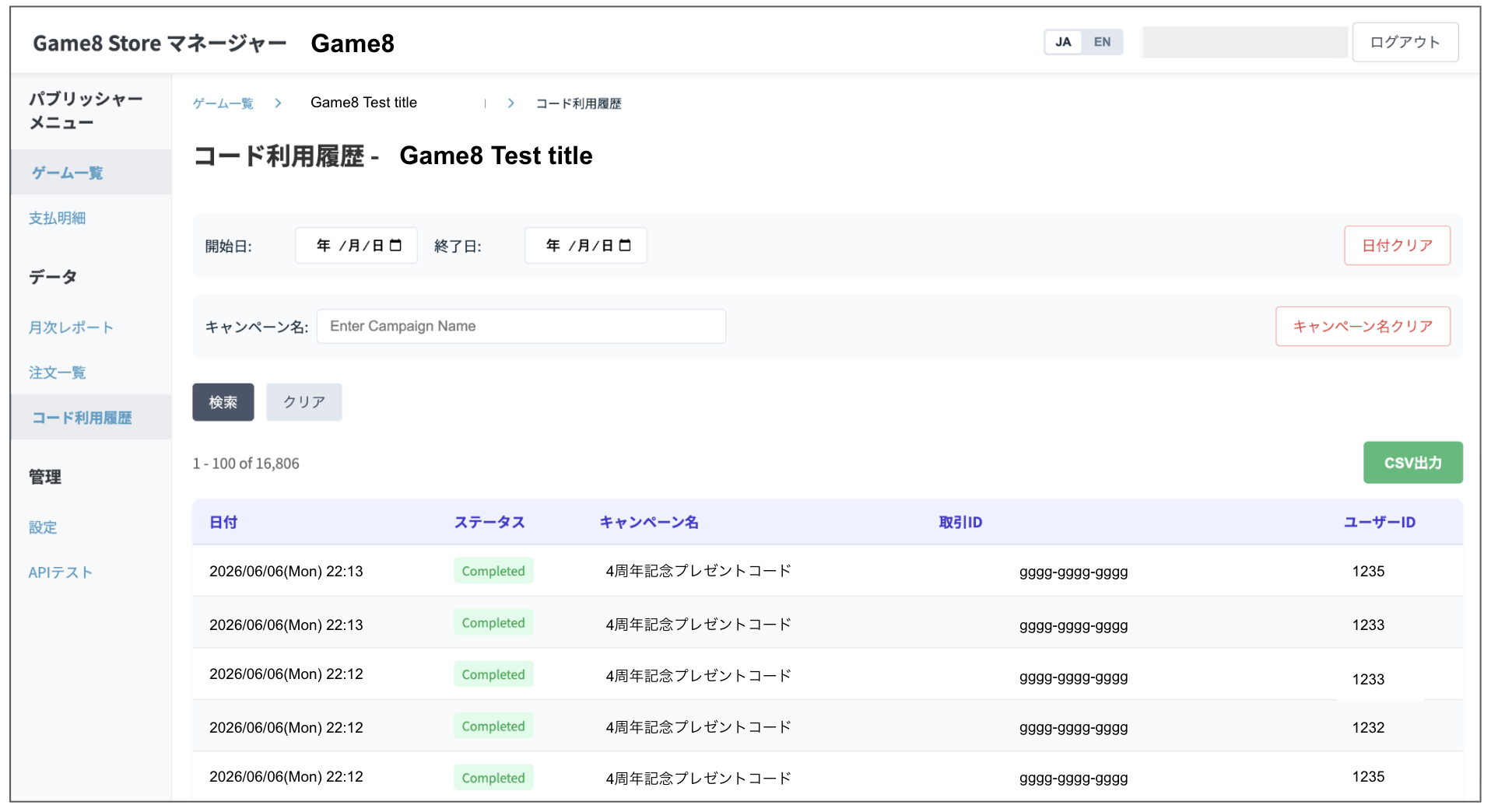
#### Key Features and What You Can Do
- **Viewing code redemption records**
- You can centrally manage and view the history of codes redeemed by users (date/time, status, associated campaign, etc.).
- **Filter (search) functions**
- **Date search**: Specify a start date and end date to narrow the list to codes redeemed within a specific period.
- **Campaign name search**: Enter a campaign name to extract only code redemptions related to a specific promotion or event.
- **Data export (CSV export)**
- You can download the displayed code redemption history as a CSV file and use it to measure distribution effectiveness or cross-check data during user support.
#### 2. Screen Field Descriptions
| **Field** | **Description** |
| --- | --- |
| Start date / End date | Filters the list by date range. Select dates from the calendar icon. Click "Clear dates" to reset the selection. |
| Campaign Name | Enter the specific campaign name you want to search for. Click "Clear campaign name" to reset the input. |
| Search button | Reloads the list using the specified date and campaign name criteria. |
| Clear button | Resets all search criteria to their initial state. |
| CSV export button | Downloads the matching code redemption history data in CSV format. |
**Code redemption history table (contents of each column)**
| Column | Description |
| --- | --- |
| Date | Shows the date and time the user redeemed (entered) the code (e.g., `2026/06/06(Mon) 22:13`)。 |
| Status | Shows the processing state of the code. (
(`Completed` = code verification, item grant, and other processing completed successfully, `Cancelled` = canceled, `Pending` = processing in progress) |
| Campaign Name | Shows the name of the campaign or event for which the code was issued (e.g., `4th Anniversary Gift Code`)。 |
| Transaction ID | A unique system identifier assigned to each code redemption. |
| User ID | The unique identifier of the Game8 account of the user who redeemed the code. |
### Items
This is the screen for registering and editing items sold on Game8 Store and organizing them by category. For detailed steps, see [Items](https://developers.store.game8.jp/en/item-management/).
### In-app SKU Integration
This feature imports in-app purchase (IAP) items already registered on Apple / Google and lets you list and manage them as Game8 Store products. For details, see [In-app SKU Integration](https://developers.store.game8.jp/en/store-linkage/).
### Settings
On the Config screen, you can register the game's maintenance schedule.
### API Test
On the API Test screen, you can send requests to the game server and verify that the APIs respond correctly.
### Payout Statements
On the Payout Statements screen, you can download the payout statement for each month.
Statements are available for download in PDF format by the third business day of each month.
## Permission Settings
### How to Create Accounts
Please contact your account representative.
### Account Types
**Admin permission** : Can add and edit products in the admin console.
**View permission** : View-only access.