Home › Features
Present Codes
📝 This is a reference translation. In case of any discrepancy, the Japanese version prevails.
This page explains how to issue present codes and how to use the campaign list.
What you can do with this feature
- Campaign list
- Issuing a new present code
- Exporting the campaign list as CSV
Screen Fields
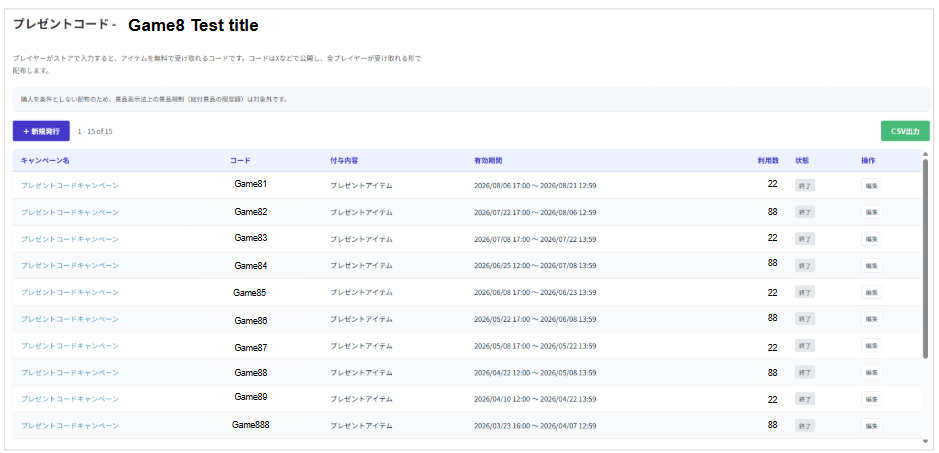
- Campaign list

On the Present Codes screen, you can review ongoing and finished campaigns in a list. The fields are as follows.
| Field | Description |
|---|---|
| Campaign Name | Shows the campaign name you set. |
| Code | Shows the present code string that players enter. |
| Reward | Shows the display name of the present item. |
| Validity Period | Shows the campaign's validity period (start date and time to end date and time). |
| Redemptions | Shows the cumulative number of times the code has been redeemed. |
| Status | Shows the current status (such as Ongoing or Ended). |
| Actions | The [Edit] button lets you review the campaign details and change its settings. |
- New Code
1. Basic Information
| Field | Description |
|---|---|
| Campaign Name | Sets the campaign name used for internal management (up to 40 characters). *This can still be changed after issuing. |
| Code string | Sets the code that players enter (letters and digits, 4 to 20 characters). ・「Generate」 creates a random code. ・To prevent misreading, characters that are hard to tell apart (O, 0, I, 1) are excluded from auto-generation. ※This cannot be changed after issuing。 |
2. Present item
*This creates the item distributed by the code at the same time.
| Field | Description |
|---|---|
| Display Name | Sets the name of the reward item. |
| Item ID | Sets the item identifier used to link with the game's system. |
| Sales Price | Because this is a present item, the price is fixed at 0 yen. |
| Description | Enter supplementary notes about the reward item. |
| Benefit Description | Enter the specific contents of the reward and any cautions. |
| Thumbnail | Upload the icon image for the reward. |
| Bundle Items | Add and configure the items to be granted. *Granting is performed by calling the publisher API /register. If it fails because of an inventory cap or similar on the game side, the code is not consumed and the player can retry after meeting the conditions.※This cannot be changed after issuing。 |
3. Publish & Schedule
*This applies to both the campaign and the present item.
| Field | Description |
|---|---|
| Start Date & Time | Specifies the date and time when publishing starts. *If left blank, the campaign starts immediately (leaving it blank while editing a published campaign also switches it to an immediate start). |
| End Date & Time | Specifies the date and time when the campaign ends. Codes become unusable once that date and time has passed. *This can still be changed after issuing. |
| Status | Choose from Unpublished, Admin Only, and Public. *This can be changed or stopped after issuing. |
4. Campaign Page
*These are the settings for the special page shown in the "Enter Code" tab of the game page.
| Field | Description |
|---|---|
| Key Visual Image | Sets the main image of the special page. ・Recommended size: 1200 x 630 px (png / jpg, up to 5MB) |
| Introduction | Enter text that conveys the outline and appeal of the campaign. |
| Gift contents | Enter the list of rewards players receive (use Add item to register more than one). |
| Notes | Enter the terms and conditions (you can check Emphasize in red). |
| How to redeem | Sets the steps from obtaining the code to receiving the reward (Step 1 to 3 and so on) with text and images. *The note "A Game8 account and sign-in are required" is inserted automatically. |
| Preview | Lets you check in real time how the content you entered will appear on the special page. |