Home › Features
Payment Methods
📝 This is a reference translation. In case of any discrepancy, the Japanese version prevails.
This page explains how to review the payment methods shown on this game's purchase screen, and how to apply to add a payment method.
What you can do with this feature
- Reviewing the list of payment methods
- Reviewing additional fees
- Reviewing contract status
- Reviewing the service status of each payment method
- Applying to add a payment method
Screen Field Descriptions
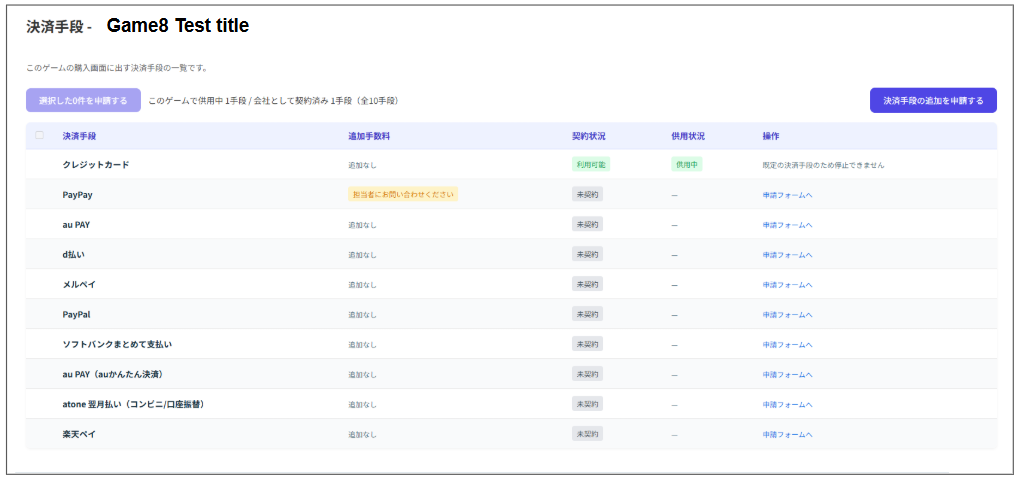
- Payment method list
This shows the list of payment methods currently available on Game8 Store.
- Additional Fee
| Field | Description |
|---|---|
| None | A payment method with no cost beyond the standard payment processing fee. You can use it as is. |
| Please contact our staff | A payment method that requires individual arrangements depending on the introduction terms and the type of contract. Please contact your Game8 representative for details. |
- Contract Status
| Field | Description |
|---|---|
| Available | The contract is complete and the method is available. |
| Under Review | The application is under review. Once the review is passed, you can request service. |
| Not Contracted | No contract is in place. To start using it, submit a [Payment Method Application]. |
- Service Status
| Field | Description |
|---|---|
| In Service | The contract is complete and the method appears on this game's purchase screen. To stop service, apply from [Request to suspend] in the [Actions] column. |
| Suspended | The contract is in place, but service is suspended. To resume service, apply from [Request to resume service] in the [Actions] column. |
| — | Shown when the method is not in service. |
- Actions
| Field | Description |
|---|---|
| Default payment method; cannot be suspended | Credit card is the standard (default) payment method on Game8 Store, so it cannot be suspended. |
| Request to resume service | Shown for contracted payment methods whose service is suspended. Press the button to request that service be resumed. *After you apply, the change takes effect on the store once a Game8 representative updates the setting. |
| Request to suspend | Shown for contracted payment methods that are in use. Press the button to request that use be suspended. *After you apply, the method is suspended once a Game8 representative updates the setting.If you need an urgent suspension, please contact your representative directly. |
| Go to Application Form | Shown for payment methods that are not contracted. You can apply to add the method from the linked form. |
| You can request once the review is passed | Shown for payment methods whose contract status is Under Review. Once the review is passed, you will be able to request service. |
- Other
| Field | Description |
|---|---|
| Top left of the screen Request 0 selected | You can select and apply for contracted payment methods in bulk. By selecting checkboxes, you can apply to switch between In Service and Suspended in one go (resume requests and suspend requests can be selected at the same time). |
| Top right of the screen Request a New Payment Method | Opens the application form for adding a new payment method. |