Sales Promotion Features
Game8 Store provides features free of charge to help you build a storefront that delights users.
Please combine the following features to suit your goals.
| Goal | Feature |
|---|---|
| 1. Get to Know the Store | 1.1. Game8 Strategy Wiki Integration |
| 2. Try It for Free | 2.1. Gift Code Feature / 2.2. Free Items |
| 3. Make Products More Appealing | 3.1. Limited-Time & First-Come Sales / 3.2. Purchase-Limit Sales / 3.3. Step-Up Pack Feature / 3.4. Category Loop Pack Feature / 3.5. Novelty Item Sets |
| 4. Keep Players Engaged | 4.1. Point Rewards Feature / 4.2. Coupon Feature / 4.3. Gift Purchase Feature / 4.4. Email Notifications |
Get to Know the Store
Game8 Strategy Wiki Integration
Overview
- If the target game has a Game8 Strategy Wiki, links to the store can be placed on its strategy pages.
- Because users researching strategy information can be naturally guided to the items they are looking for and to special offers, a high click-through rate can be expected.
How to Use It for Promotions
- Reach users naturally in the context of play
Readers of the Game8 Strategy Wiki are users who are actively playing that game right now. Information such as "the store has items useful for developing this character" reaches the people who need it, as information they need. - Proceed straight to purchase while logged in
The Game8 Strategy Wiki and Game8 Store share a common Game8 account (single sign-on), so users logged in to the Wiki can proceed from the purchase button on the Wiki to the purchase page while remaining logged in. There is no need to re-register or log in again, keeping the steps to purchase to a minimum. - Reach users who miss in-game announcements
The Game8 Strategy Wiki is also visited by many users who would never learn about the store through in-game announcements alone. Links via the Wiki serve as an entry point for such users to discover the store.
Requirements
- A Game8 Strategy Wiki for the target game must exist. The placement of links will be arranged individually, so please consult your account representative.
Try It for Free
Gift Code Feature
Overview
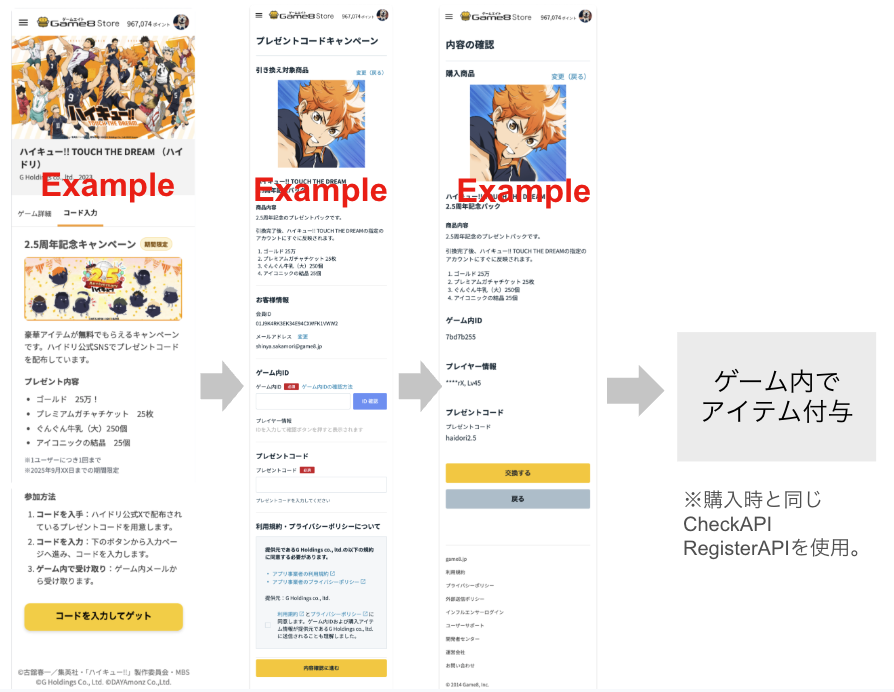
- This feature grants rewards to users when they enter a serial code, distributed via social media or events, on Game8 Store. Because codes are entered outside the app, you can naturally guide users to the web shop while complying with app store policies.
How to Use It for Promotions
- The existing purchase APIs (Check/Register) are reused as-is. There is no need to build a code entry screen in the app.
- Since code entry is handled on the Game8 Store side, there is no need to implement a new input screen in your app.
- By announcing social media and web campaigns in-game, you can naturally guide users to Game8 Store.
- Because redeeming a reward follows the same ID entry flow as a payment, users become familiar with using external payments.
Usage Fee
- The Gift Code Feature is free to use.
Cost of Rewards
- As a rule, the in-game items provided are borne by the publisher.
Configurable Settings
- Reward details (in-game items, etc.)
- Redemption limit (e.g., once per user)
- Expiration date
- Number of codes issued (up to 3 codes can run concurrently per game)
- Code string
- In addition to alphanumeric characters, the following symbols can be specified.
- Hyphen (-)
- Underscore (_)
- Period (.)
- In addition to alphanumeric characters, the following symbols can be specified.
Issuance and Operation Conditions
- You can start using the feature either by asking Game8 to issue the codes, or by registering them yourself from Present Codes in the admin console. The timing of when each method takes effect is as follows.
- Asking Game8 to issue: one business day at the earliest
- Registering from the admin console: immediate
- Multiple code sets can be run concurrently
- Any distribution method is acceptable (social media, events, official website, email, print media, in-store distribution, etc.)
How to Use
[Ask Game8 to issue]
- Request issuance: Ask your Game8 Store representative to issue present codes
- Settings: The representative configures the item contents, the schedule, and the campaign page
- Announce: Announce the code on X or other channels
- Grant: The user enters the code on Game8. An item grant request is sent to the game server via the API.
[Issue from the admin console]
- Settings: Fill in the required fields from Present Codes in the admin console.
- Announce: Announce the code on X or other channels
- Grant: The user enters the code on Game8. An item grant request is sent to the game server via the API.
For detailed instructions, see Present Codes.
Setting fields in detail
| Field | Description |
|---|---|
| Basic Information | Enter the campaign name and the code users will type |
| Present item | Configure the item distributed when the code is entered (name, image, bundle, and so on) |
| Publish & Schedule | Configure the campaign's start and end date and time and its publish status (public, unpublished, and so on) |
| Campaign Page | Configure the key visual, the description, and the redemption steps shown on the special page for users |
Overview
Free Items
Overview
- This feature lets you list items priced at 0 yen for sale. It can be used for giveaway campaign items or trial items.
- Purchase-Limit SalesCombined with this, you can run campaigns such as "one per customer" or "a free item you can claim once per day."
How to Use It for Promotions
- Let users try the store with ease
With free items, users can try the store with confidence. Users who have gone through the flow from use to receipt once will find subsequent purchases smooth as well. - Create a daily treat
Recurring distributions such as "one free item per day" become a small daily pleasure for users and naturally increase occasions to stop by the store. - No additional development required
The existing Check/Register APIs are used as-is. Theitem_categoryincluded in the purchase eligibility check (Check API) request beingfreeis the only difference from paid items.
Usage Fee
- The Free Items sales slot is free to use.
Cost of Rewards
- The cost of the in-game items distributed is borne by the publisher.
What the Game Side Needs to Do
- No additional API modifications are required.
- When running a giveaway campaign, we may ask you to allow 0-yen items to be judged purchasable even without age verification.
How to Use
- Request: Contact your Game8 Store representative with the items to distribute, the period, and any purchase limits
- Setup: The representative configures the 0-yen item and purchase limit rules
- Distribution: Users receive the free item through the same flow as a regular purchase
Make Products More Appealing
Limited-Time & First-Come Sales
Overview
- This feature lets you set a sales period or a cap on the number of units sold for an item.
- You can create special, exclusive product campaigns such as "limited to the first X customers" or "available until X date," which also helps generate buzz on social media.
How to Use It for Promotions
- Create special product campaigns
Campaigns limited by period or quantity, such as anniversary or event tie-ins, become special products users will not want to miss. - Automatic publishing timed to events
Since start and end dates can be set in advance, items can be automatically published and taken down in sync with in-game events or seasonal changes.
Usage Fee
- Limited-Time & First-Come Sales is free to use.
Configurable Settings
- Target items
- Sales period (start date/time and end date/time)
- Cap on units sold (first X customers)
How to Use
- Request: Contact your Game8 Store representative with the target items, period, and sales cap
- Setup: The representative configures the rules (publish date/time can be scheduled in advance)
- Check: Review sales and remaining stock in the admin dashboard and request changes as needed
Purchase-Limit Sales
Overview
- This feature lets you cap the number of purchases per user or per period.
- A purchase cap prevents buyouts so that items reach more users, and enables boldly discounted offers that are only possible because of a "limit of X per customer."
How to Use It for Promotions
- Easy to introduce and operate
Setup is complete simply by adding a purchase limit rule to an existing item on the Game8 Store side. (*Providing a purchase limit function on the game side as well allows for stricter enforcement.) - Special prices made possible by "X per customer"
Because purchases per user are limited, you can confidently offer heavily discounted items such as first-time-only packs. - Create recurring featured items
Special offers that reset periodically, such as "double bonus once a month" or "weekend only," become staple campaigns users look forward to every month or week.
Usage Fee
- Purchase-Limit Sales is free to use.
Configurable Settings
- Items subject to limits
- Limit unit (e.g., 1/user, 1/day, 3/week, 5/month, X/season)
- Counting method
- Calendar-based (e.g., reset daily at 00:00 JST)
- Rolling window (e.g., past 24 hours)
- Period (start date/time and end date/time)
Issuance and Operation Conditions
- Limits are checked automatically before payment is finalized.
- Rule setup, changes, and suspension are handled by your Game8 Store representative.
- Limit counts and periods can be changed at any time (changes take effect immediately).
- Limits can be set on a per-item basis.
How to Use
- Request: Contact your Game8 Store representative with the target items, purchase cap, limit method, and other details
- Setup: The representative configures the rules
- Enforcement: The limit rules are applied automatically during the configured period
- Check: Review sales and remaining stock in the admin dashboard and adjust the limits as needed
Notes
- Limits can be operated in combination with age-based restrictions (e.g., late-night or high-value limits for minors).
- Items not subject to limits are sold normally.
- Purchase limits are configured on the Game8 side, but we recommend that publishers also set them on their side as a precaution, for the following reasons.
- To ensure purchases cannot exceed the limit even if the API is called directly
- So that even if there is a misconfiguration of the purchase limit, either side can catch it
Step-Up Pack Feature
Overview
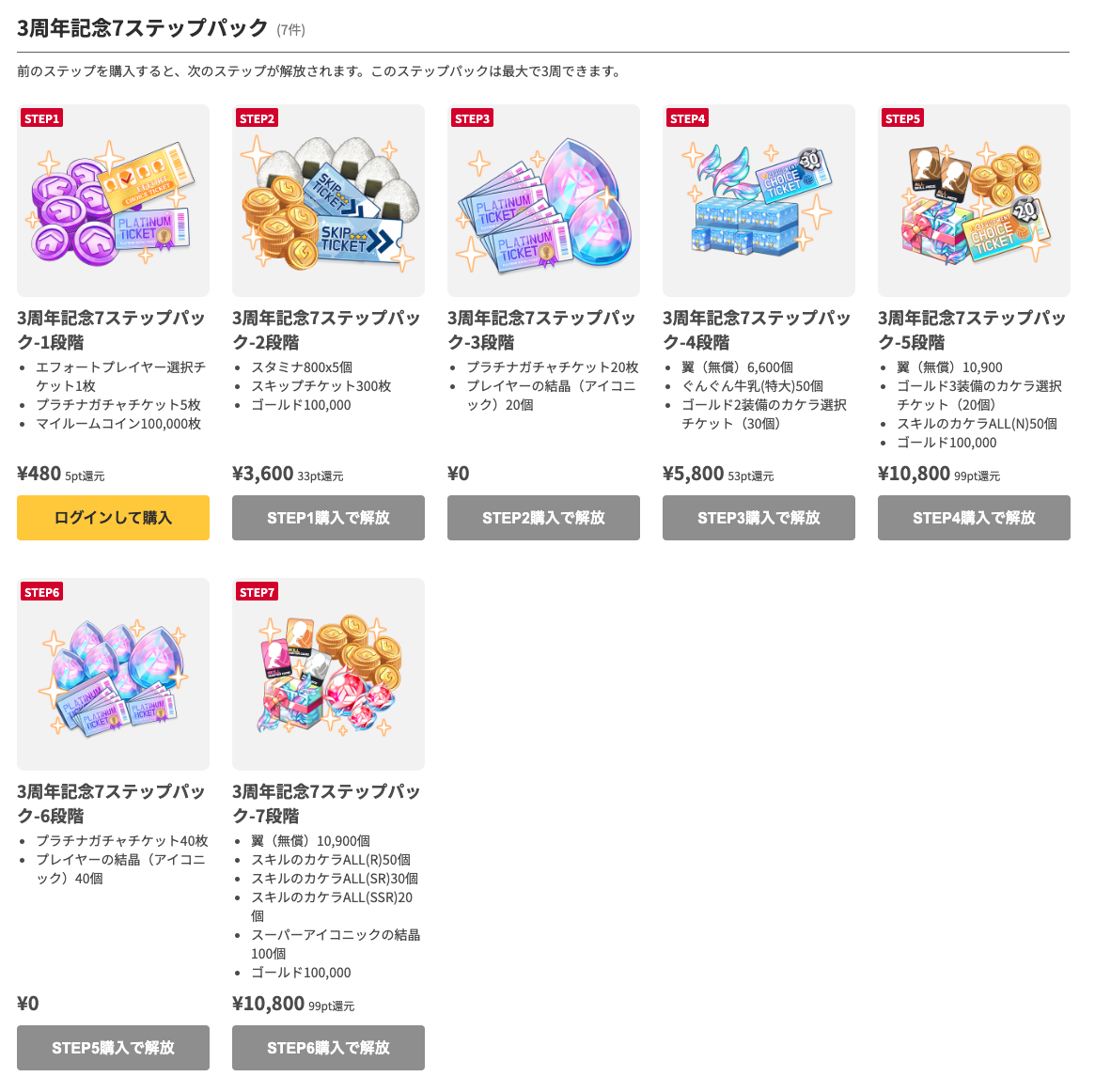
- This is a sales format in which purchasing (or obtaining) a specific item unlocks the next-tier item in sequence.
- A step-by-step path such as "obtaining Step 1 unlocks Step 2 for purchase" gives users an easy-to-follow purchase flow and lets you offer the best rewards for their progress.
How to Use It for Promotions
- Present benefits in stages
By enriching the contents with each successive purchase, you can offer the best items matched to each user's game progress and needs. - Designed to be easy even for first-time users
By setting "Step 1: Free (0 yen)," you can lower the initial psychological hurdle and use it as a guide to help users smoothly learn how to use external payments. - Flexible settings for events and campaigns
Repeat settings such as "all 5 steps, up to 3 rounds" are possible. It can be applied to a wide range of campaigns, such as limited-time event rewards or recurring monthly item set sales.
Usage Fee
- The Step-Up Pack Feature isfreeto use.
Configurable Settings
- Number of steps: The number of steps within a pack can be set freely
- Number of rounds: How many times the pack can be restarted after completing all steps (once only, unlimited, up to 3 times, etc.)
- Item contents and prices: The item contents and sale price for each step (Free Items can also be set)
- Period: Sales start date/time and end date/time
How to Use
- Draft the structure: Decide the number of steps, the items and price for each step, round limits, and so on
- Request issuance: Send the proposed structure to your Game8 Store representative
- Setup: The representative configures the step-up logic (unlock conditions, etc.) in the system
- Publish: During the configured period, the next step automatically appears in the shop according to each user's purchase status
Notes
- Which step a user is currently on is managed automatically on the Game8 Store side.
Overview
Category Loop Pack Feature
Overview
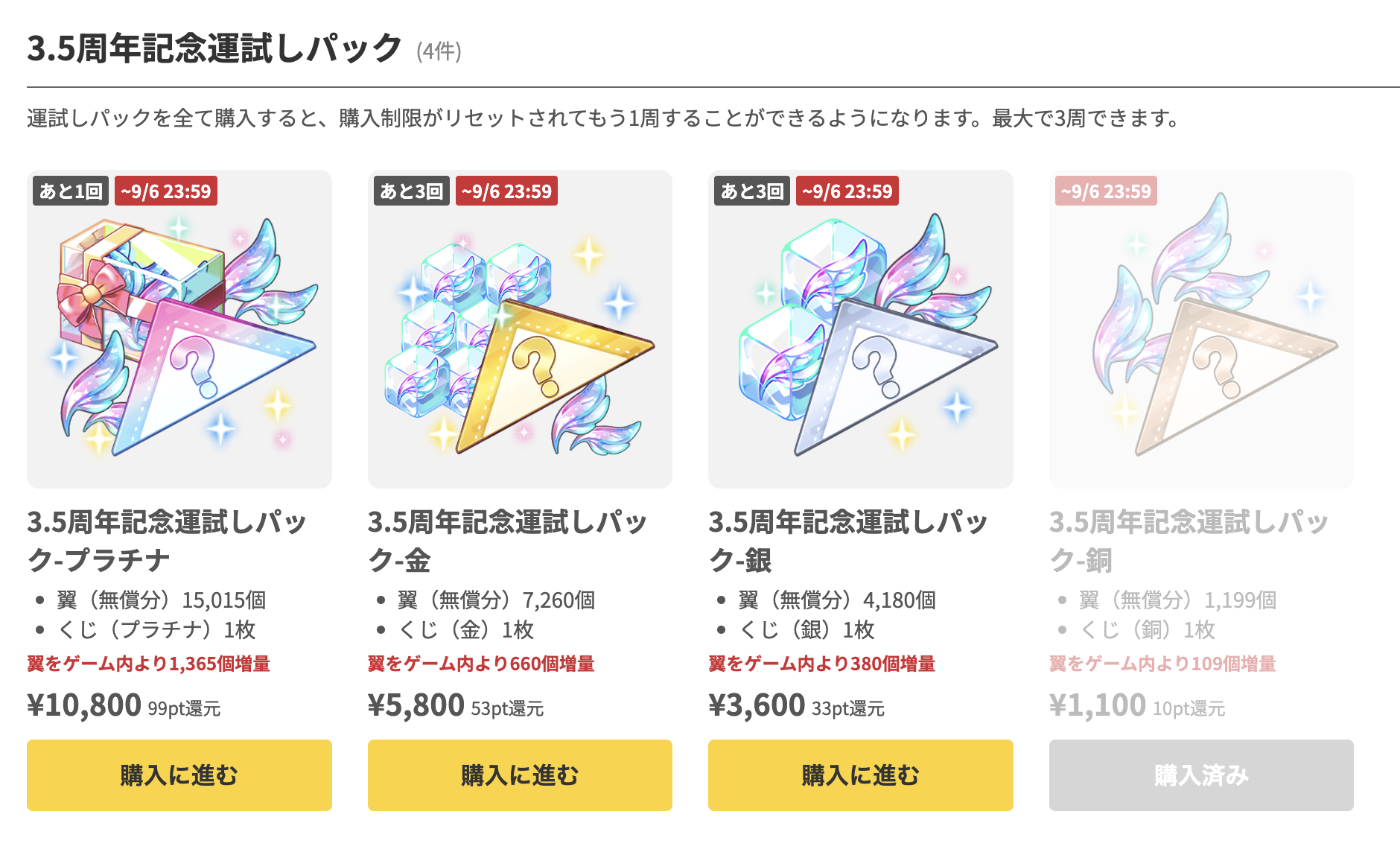
- This is a sales format in which purchasing every item in a category resets that category's purchase-count limit, allowing the same items to be purchased again.
- You can set a cap on how many times a player may loop. The design of “collect them all and you can go around once more” gives players a reason to buy the category as a whole.
How to Use It for Promotions
- Turn an entire category into a single campaign
Because you define the purchase target by category rather than item by item, “collecting them all” itself becomes the player's goal. It suits headline campaigns tied to anniversaries or in-game events. - The storefront stays alive after players buy everything
Players who hit the purchase limit are not left with “nothing more to buy”; they can keep purchasing within the number of loops allowed. Enthusiastic players' purchase opportunities are not cut off at the cap. - Offer boldly generous items with confidence
Because the number of loops is capped, you can make each loop's contents substantially more generous while still controlling the total volume provided.
Usage Fee
- The Category Loop Pack feature is free to use.
What the Game Side Needs to Do
- No additional development or API modifications are required. Loop progress is managed on the Game8 Store side, and purchases use your existing purchase-processing APIs as-is.
Configurable Settings
- Target category
- Purchase-count limit for each item in the category
- Cap on the number of loops (e.g., up to 3 loops)
- Sales period (start date/time and end date/time)
- Description text shown under the category heading
How It Appears in the Store
- Each item card shows the number of purchases remaining (e.g., 3 left).
- Items that have reached the purchase limit are shown as “Purchased”.
- You can place text explaining the loop rules beneath the category heading.
How to Use
- Request: Contact your Game8 Store representative with the target category, the item lineup, each item's purchase limit, and the number of loops
- Setup: The representative configures the category and the loop reset rules
- Launch: During the configured period, players who purchase every item in the category have their purchase limits reset and move on to the next loop
Differences from the Step-Up Pack Feature
- Step-Up Packs are a sequential-unlock format in which purchasing an item at one tier unlocks the next tier. The purchase order is fixed.
- With Category Loop Packs, every item in the category is available from the start. The purchase order does not matter, and the limits reset once all items have been purchased.
Notes
- Loop progress is managed automatically on the Game8 Store side.
- The reset condition is the purchase of every item in the category. You cannot designate only some of the items.
- The contents of the items cannot be changed between loops. From the second loop onward, the same items appear as in the first. If you would like a campaign that offers different items in each loop, please consult your representative, as we will consider handling it individually.
- This feature cannot be configured from the dashboard. Setup, changes, and suspension are handled by your Game8 Store representative, so please contact them.
Overview
Novelty Item Sets
Overview
- This is a sales format in which buyers of in-game items receive physical merchandise (novelty items) as a bonus.
- Novelty items are not-for-sale bonuses; users pay only the actual shipping cost.
How to Use It for Promotions
- Create bonuses "available only here"
Physical merchandise that cannot be offered in-game can be used as a bonus, making for special products unique to a web store. - Create lasting memories for fans
Commemorative novelty items tied to anniversary events or collaborations become tangible, special keepsakes for fans who have played the game for a long time.
Usage Fee
- The Novelty Item Sets sales slot is free to use.
Cost of Rewards
- Publishers bear the cost of producing or procuring the novelty items. Actual shipping costs can be borne by users.
Points to Note
- Novelty item bonuses are subject to the caps under Japan's Act against Unjustifiable Premiums and Misleading Representations (premiums offered to all purchasers). Since there are conditions on the balance between the target product's price and the novelty item's procurement cost, please consult your contact person at the planning stage.
- The product page must clearly state that the item is not for sale, the offer conditions (eligibility, first-come limits, etc.), and that shipping is charged at actual cost. Game8 Store provides templates for these notices.
How to Use
- Consult: contact your Game8 Store representative with the novelty item details, target products, and expected price range
- Confirm: review the premium regulation conditions and required notices with your representative
- Set up: your representative registers the product page, including the required notices
- Shipping: shipping schemes are arranged individually
Keep Players Engaged
Point Rewards Feature
Overview
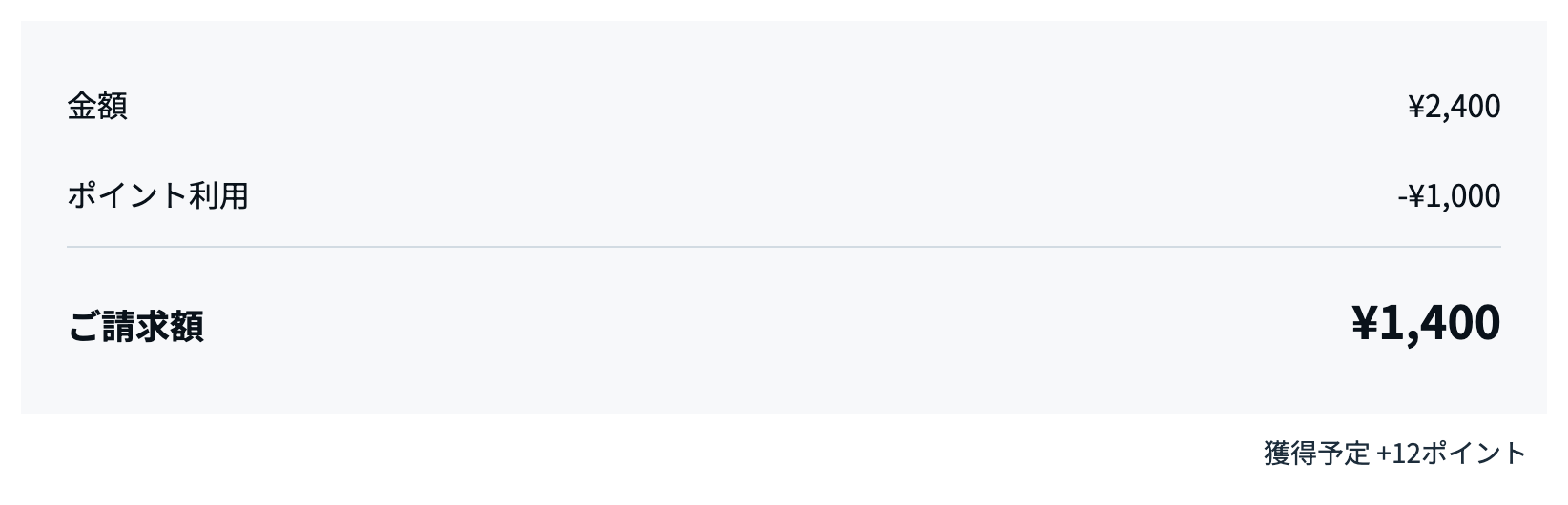
- This feature grants points according to the purchase amount, which can be used on subsequent purchases.
- It encourages continued use and repeat purchases, leading to greater long-term loyalty.
How to Use It for Promotions
- Granting points according to the purchase amount offers the "fun of saving up" and creates a reason for the next purchase.
- By configuring the reward rate and granted points, you can encourage bulk purchases and purchases of higher-priced items.
- Raising the reward rate only during event periods can drive short-term sales increases and more frequent visits.
- Having a point balance helps prevent user churn and encourages continued use.
Usage Fee
- The point rewards feature is free to use.
Cost of Rewards
- As a rule, the cost of granted points is borne by Game8.
- Publishers can also add to the reward rate at their own expense (e.g., the standard reward rate plus an additional publisher-funded reward).
Configurable Settings When Adding to the Reward Rate
- Additional reward rate (X% of the purchase amount)
- Period during which the additional reward rate applies
How to Use When Adding to the Reward Rate
- Settings: Game8 Store configures the reward rate and expiration
- Grant on purchase: Points are granted automatically when the user purchases an item
- Redeem: The user redeems points at checkout on subsequent purchases
- Check: Grant and redemption status can be checked in the admin dashboard
Overview
Coupon Feature
Overview
- This feature applies discounts at purchase, helping you acquire new users and encourage additional purchases from existing users.
- It can be flexibly customized with fixed-amount or percentage discounts and eligibility conditions, and can be combined with campaigns and event initiatives.
How to Use It for Promotions
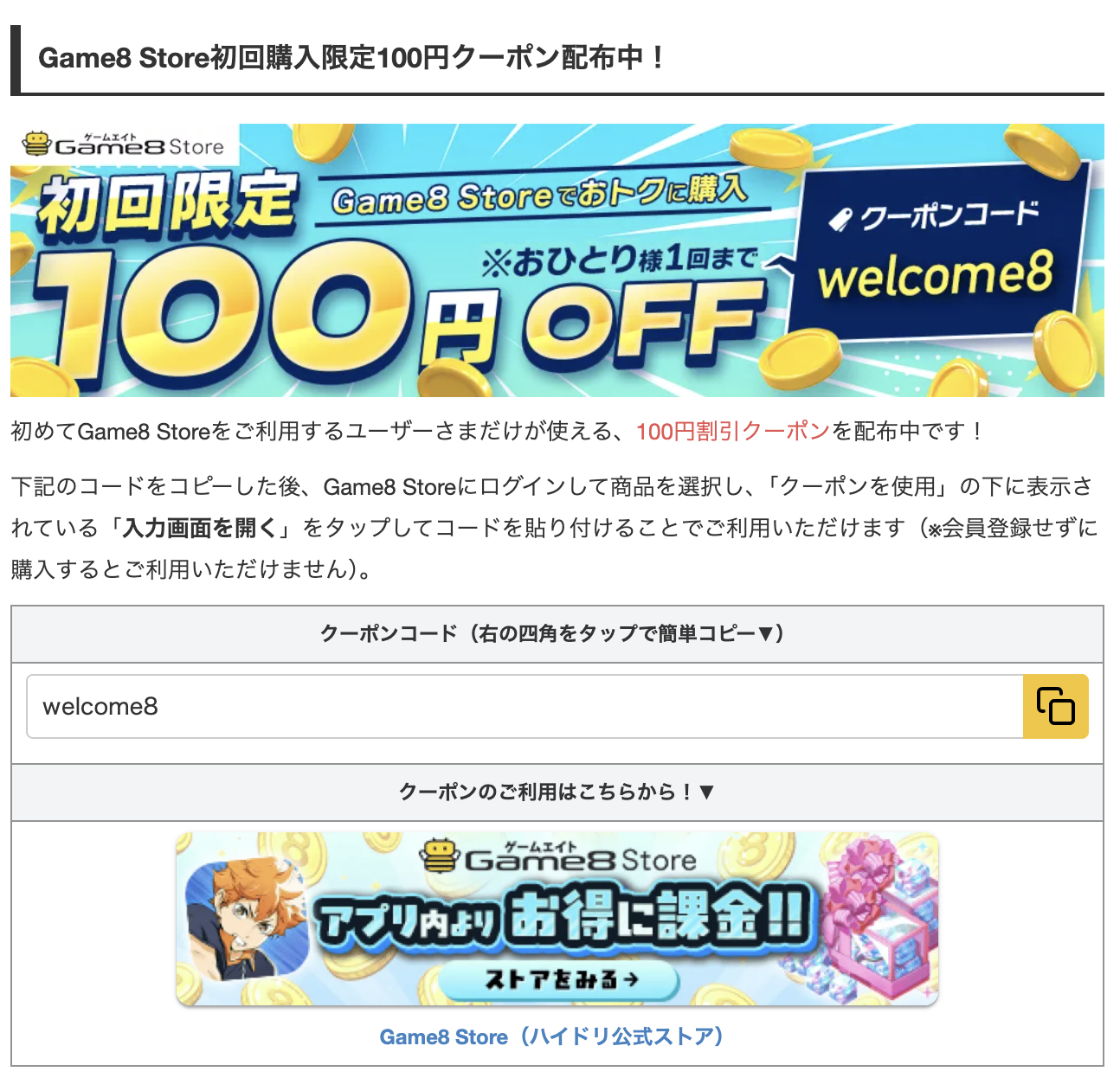
- Distributing first-purchase-only coupons lowers the hurdle for a first purchase.
- Granting coupons on repeat purchases or purchases of specific items encourages continued use.
- Coupons can be limited to specific games or users, maximizing campaign effectiveness.
- You can set different coupon conditions for inviters and invitees to encourage use by both.
Usage Fee
- The coupon feature is free to use.
Cost of Rewards
- As a rule, the discount amount is borne by the publisher and deducted at revenue settlement.
- Game8 may also issue Game8-funded coupons as part of Game8 Store promotional initiatives.
Configurable Settings
When issuing from the admin console, you can set the discount details, the minimum purchase amount, the usage limits, the first-purchase-only setting, and the valid period. Any other item requires asking Game8 to issue the coupon.
- Discount type (fixed-amount / percentage)
- Cost bearer (publisher-funded / Game8-funded)
- Restrictions on eligible games and users
- Minimum purchase amount
- Maximum discount amount
- Number of uses allowed per user
- Number of uses allowed per coupon
- Friend-referral settings (conditions such as the inviter being unable to use it themselves)
- Automatic issuance settings (e.g., automatically grant to first-time buyers and distribute by email)
- Expiration date (can be set by date)
How to Use
[Ask Game8 to issue]
- Request issuance: Ask your Game8 Store representative to issue a coupon
- Settings: The representative configures the discount details, conditions, and expiration date
- Distribute: Distribute the issued coupon codes to eligible users
- Redeem: The user enters the coupon code on the purchase screen and pays the discounted price
- Check: Coupon usage can be checked in the admin dashboard
[Issue from the admin console]
- Settings: Enter the required fields from Issue a New Coupon Code in the admin console
- Distribute: Distribute the issued coupon codes to eligible users
- Redeem: The user enters the coupon code on the purchase screen and pays the discounted price
- Check: Coupon usage can be checked in the admin dashboard
For detailed instructions, see Coupon Codes.
Setting fields in detail
| Field | Description |
|---|---|
| Basic Information | Configure the internal campaign name and the reason for issuing (both hidden from players), and the code string users will type |
| Discount | Configure the discount type (percentage or fixed amount), the rate or amount, and the minimum purchase amount required (0 yen means no restriction) |
| Target | Review the specifications for the target scope, such as applying to all items (no narrowing by category, restoration of the usage count on refund, and so on) |
| Requirements | Configure whether the coupon is limited to first-time buyers, and the usage limits in total and per player |
| Valid Period | Configure the start and end dates during which the coupon can be used (leave blank for no expiration) |
Overview
Gift Purchase Feature
Overview
- A feature that lets users send in-game items to other users by specifying their Game8 ID.
- It can be used only when the recipient has enabled "Receive Gifts" on their My Page. Gift receiving is off by default and follows an opt-in design: users can receive gifts only if they have enabled it themselves.
- This feature applies to in-game items. However, the following items are excluded:
- Items whose unit price exceeds the gift sending amount limit
- Products with purchase limits set (e.g., once per day or once per person)
How to Use It for Promotions
- A new way to enjoy the game, starting with a gift
Gifts from friends and guild members create encounters with items users would not buy for themselves. The experience of receiving a gift itself becomes an opportunity to discover the store. - A good fit for community and streaming initiatives
It can be used for community-driven initiatives, such as giveaway campaigns from streamers to their viewers or commemorative gifts for guild events. - No implementation required on the game side
Since it uses the existing purchase APIs (UserInfo/Check/Register) as is, there is no need to implement a gift feature in your app.
Usage Fee
- The Gift Purchase Feature is free to use.
Cost of Rewards
- The item price is paid by the user sending the gift. Neither the publisher nor Game8 bears any funding cost.
What the Game Side Needs to Do
- No additional development or API modifications are required. The only difference from a regular purchase is that, for gift purchases, the grant destination in the existing Register API is the recipient's in-game account ID.
- Before purchase, the recipient's account existence (UserInfo API) and eligibility to receive (Check API) are checked automatically, so grants to non-existent accounts or grants that would result in duplicate ownership are blocked in advance.
Safety Design (Fraud Prevention)
| Measure | Details |
|---|---|
| Opt-in gift receiving | Gift receiving is off by default. Since gifts cannot be sent to users who have not enabled it, this prevents unintended or unwanted gifts. |
| Purchaser (sender) requirements | Only users who meet certain conditions, such as a cumulative purchase history in the target game, can send gifts. |
| Sending limits | Daily limits are set on the number of gifts sent and the total amount sent. |
| Payment requirements | Gift purchases can only be made by credit card, with 3D Secure authentication required. |
| Pre-purchase verification | The recipient's account existence and eligibility to receive are verified via API before purchase. |
| Privacy | The only sender information shown to the recipient is their Game8 Store display name. In-game IDs and personal information are not disclosed to the recipient. |
Configurable Settings (Per Game)
- Enable/disable the feature
- Sender requirements (minimum cumulative purchase amount / minimum level)
- Daily limit on the number of gifts sent
- Daily limit on the total amount sent
How to Use
[Publisher]
From Gift Settings in the admin console, you can set whether to use the gift feature and, if you do, the minimum level, the minimum spending, and the daily limits on amount and count.
For detailed instructions, see Gift Settings.
[User]
- Enable receiving: the recipient enables "Receive Gifts" on their My Page
- Gift purchase: The sender checks "Buy as a gift" on the purchase screen and enters the recipient's Game8 ID (a message can also be attached if desired)
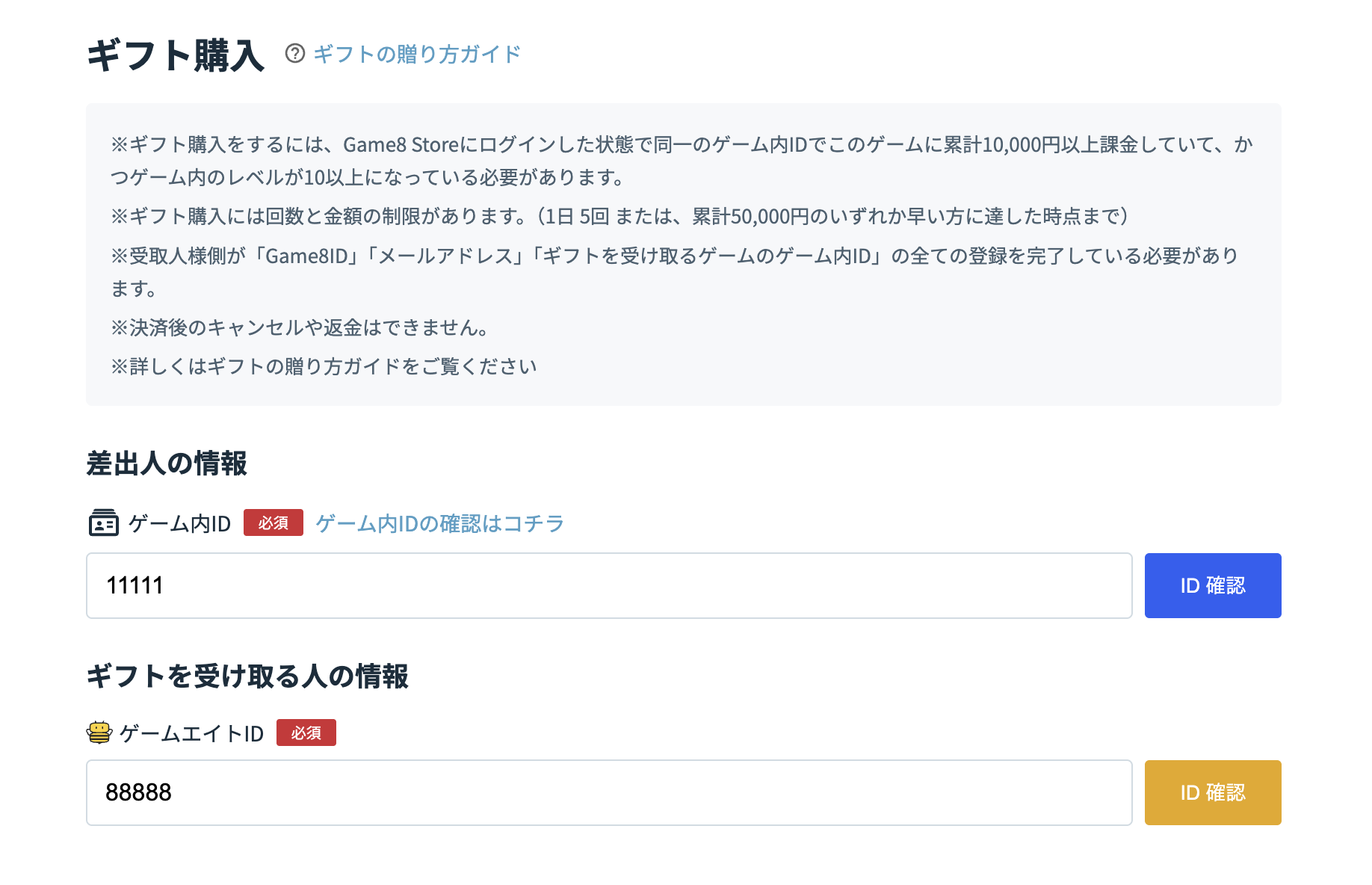
- Recipient confirmation: the recipient's display name and level are shown, so the sender can confirm there is no mistake before completing payment
- Grant: after payment is completed, the item is granted to the recipient's game account via the API
- History: the recipient can view received gifts under "Gift Receipt History" on their My Page
The following guide pages are available for users (Japanese only). They can also be opened from the "ギフトの贈り方ガイド" (gift guide) link on the purchase screen.
- Sender: How to Send Gifts guide
- Recipient: Gift Receiving Setup guide
Notes
- Points and coupons can also be used for gift purchases.
- Gifts cannot be canceled or changed after they are granted, including cases where the recipient's Game8 ID was entered incorrectly.
- Receiving gifts requires a Game8 Store account (with an email address set) and account linking with the target game.
Email Notifications
Overview
- A feature that lets Game8 Store send announcement emails about the target game to users who have consented to receive emails.
- You can make sure users do not miss new product additions or the start of campaigns.
How to Use It for Promotions
- Make sure users never miss great deals
Limited-time products and campaigns cannot be enjoyed if users do not know they are happening. This feature reliably delivers information to interested users who have consented to receive emails. - Announcements timed with events
By sending emails timed with in-game events or new product additions, users can check the store at the best moment.
Prerequisites for Sending
- Emails are sent only to users who have consented (opted in) to receive them. Game8 Store obtains this consent.
- Game8 handles the sending. The content and timing are coordinated with your contact person.
How to Use
- Consult: contact your Game8 Store representative with the content you want to announce and your preferred timing
- Send: Game8 drafts the email copy and sends it to users who have opted in