Home › Features
Item & Category Management
📝 This is a reference translation. In case of any discrepancy, the Japanese version prevails.
This page explains how to register and edit items sold on Game8 Store, and how to organize them by category
Items
On the Items screen, you can register and configure the items sold on Game8 Store.
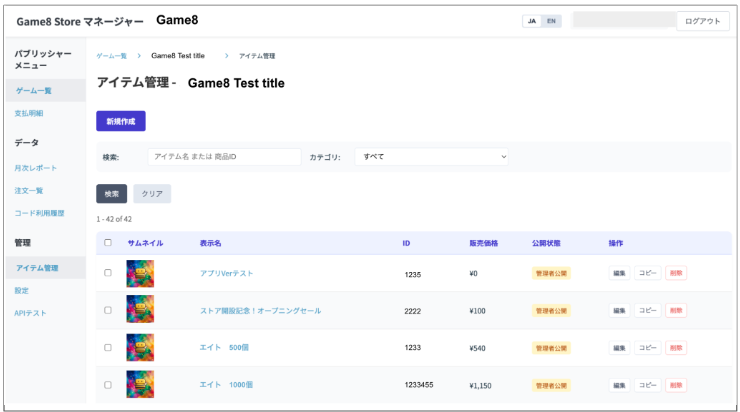
What you can do with this feature
- Registering new items
- Search and filter registered items (keyword / category / status)
- Editing item information (edit / copy / delete)
Screen Field Descriptions
Search and action area
| Field | Description |
|---|---|
| + New Item button | The button at the top right of the screen. Opens the input screen for registering a new item. |
| Filters button | Shows or hides the search input fields. |
| Search (input field) | Enter the item name or product ID you want to find. |
| Category | Select a category from the dropdown to filter the list (the default is "All"). |
| Publish status | Select from "All", "Public", "Admin Only", or "Unpublished" to filter. |
| Search button | Reloads the list using the specified criteria. |
| Clear button | Resets the search criteria to their initial state. |
Item list table (column descriptions)
| Column | Description |
|---|---|
| Checkbox | Used to select multiple items for bulk actions. |
| Thumbnail | Shows the registered item image. |
| Display Name | The name shown on the store. Click it to view and edit the details. |
| ID | The item's unique identification number (product ID). |
| Sales Price | Shows the selling price (e.g., ¥0、¥540 ). |
| Status | Publish status(Unpublished、Admin Only、Public). |
| Actions | Edit / Copy / Deleteetc. operations. |
How to Register an Item (New)
- Click [+ New Item] at the top right of the screen.
- Enter the basic information.
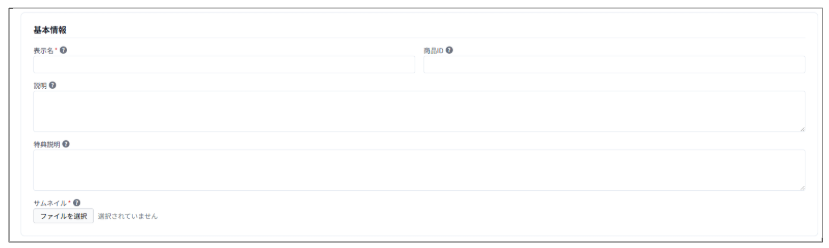
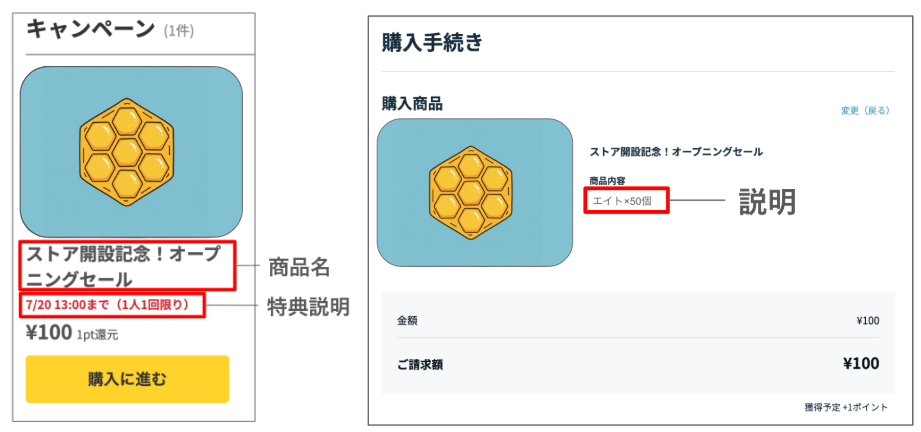
- Display Name: The product name shown on the store
- Item ID: The ID used for API integration (not visible to users)
- Description: Shown under "Product Details" on the purchase screen (e.g., Eight x50)
- Benefit Description: Shown in red text below the product name
- Thumbnail: Recommended 2000×2000px or smaller / 5MB or less
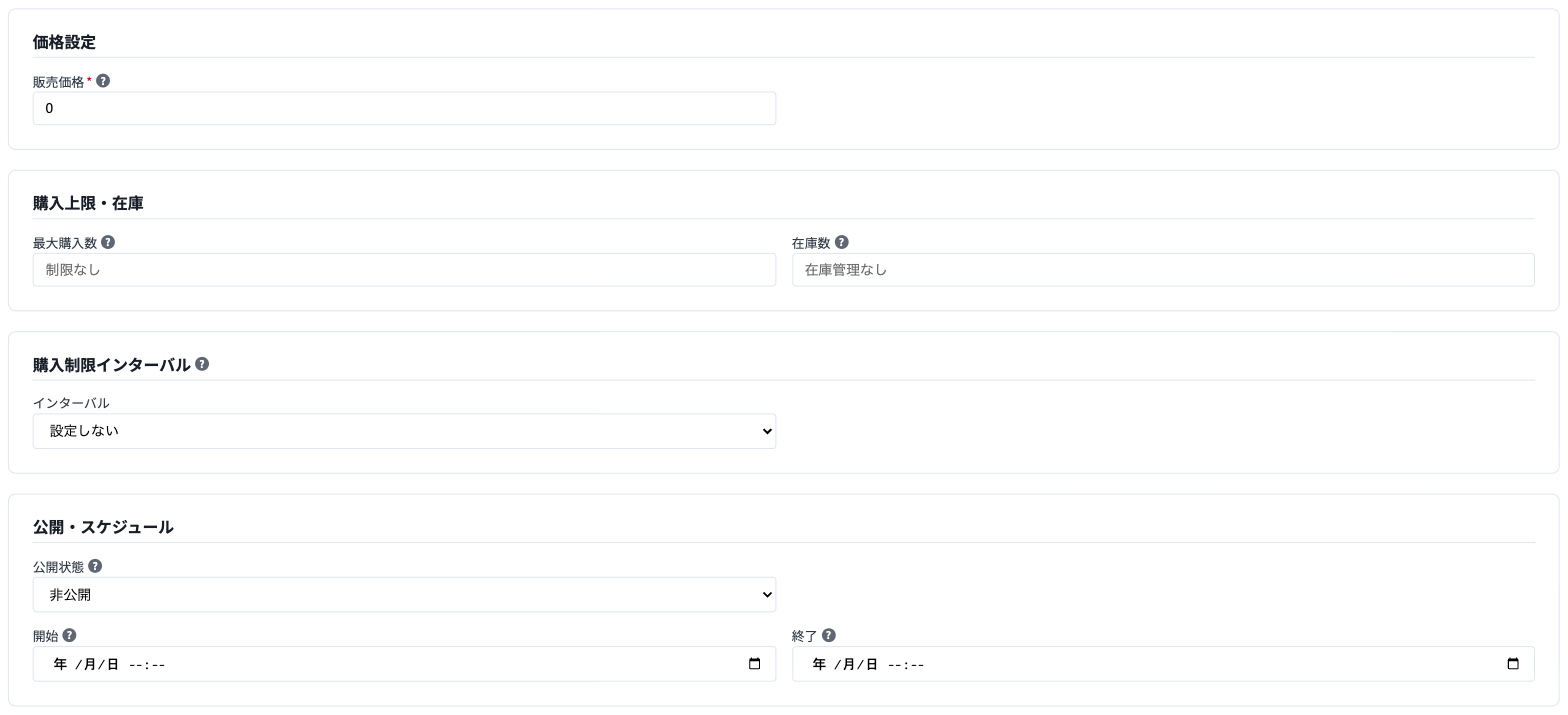
- Enter the remaining information.
- Pricing: Sales Price (the item's price)
- Purchase Limit & Stock: Maximum purchase quantity / stock quantity ("Sold Out" is shown when the set quantity is reached)
- Purchase Limit Interval: How often the purchase limit resets (Daily / Weekly / Monthly)
- Publish & Schedule: Publish Status / Start / End
Settings Description Unpublished Not visible to anyone. Admin Only Visible only to accounts with admin permission, view permission, and Game8 administrators. Public Visible to everyone.
- Categories and tags
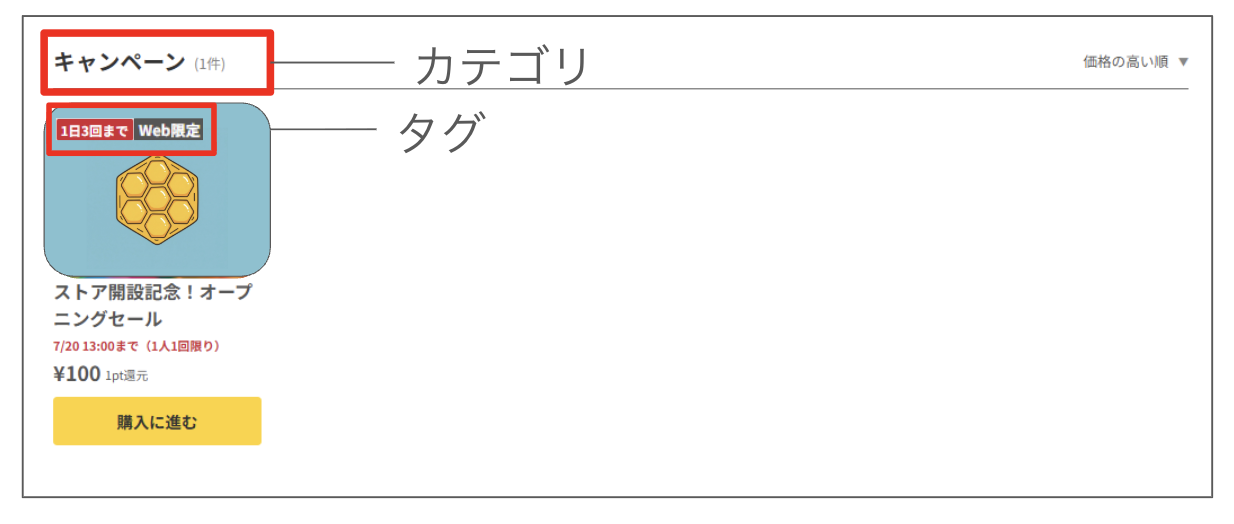
- Category: Set this to make the item list easier to browse (you can add new categories with [+ Add] as needed).
- Tags:
- Main tag: shown on the thumbnail with a red border
- Sub tag: shown on the thumbnail with a gray border
- Bonus items / bundle items
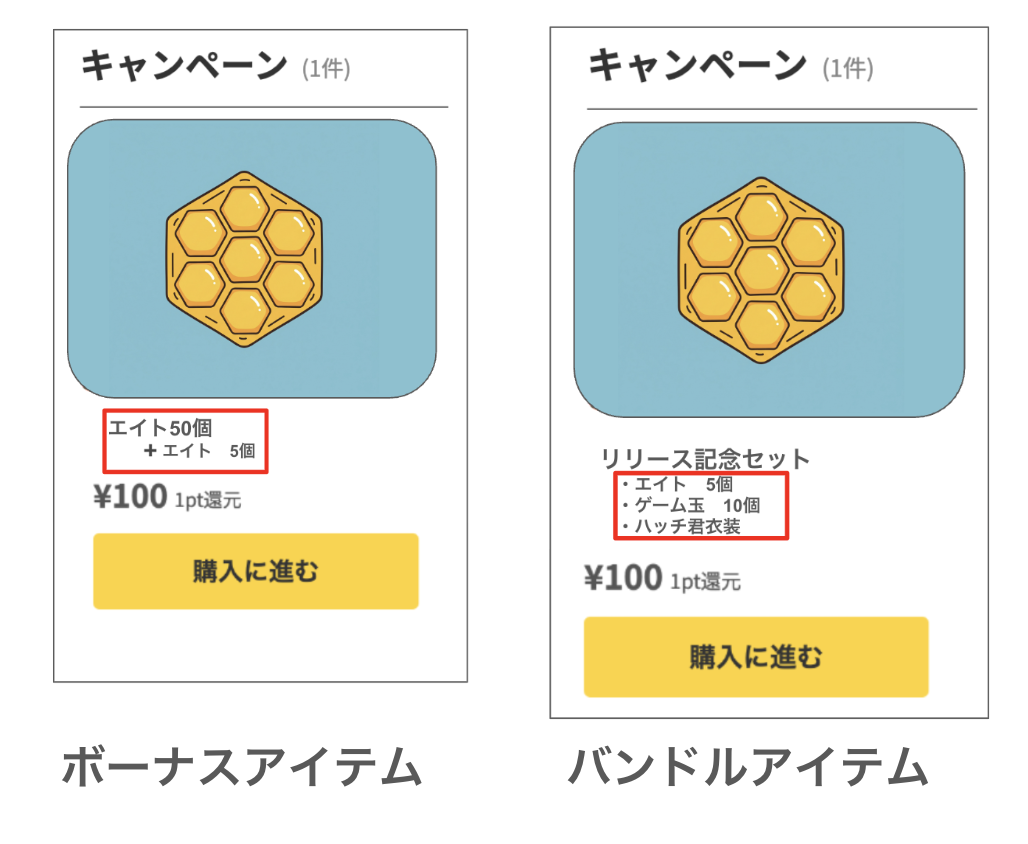
- Bonus Items: Use this when additional items are given with the purchase.
- Bundle Items: Enter each item included in a bundled product.
Filling this in makes it easier to see what is included, even on the list screen.
- Once all fields are filled in, click the [Create Item] button to finish.
Categories
Categories are groupings used to organize the store's product list. Each item is assigned a category on the Items screen, and products are displayed by category in the store.
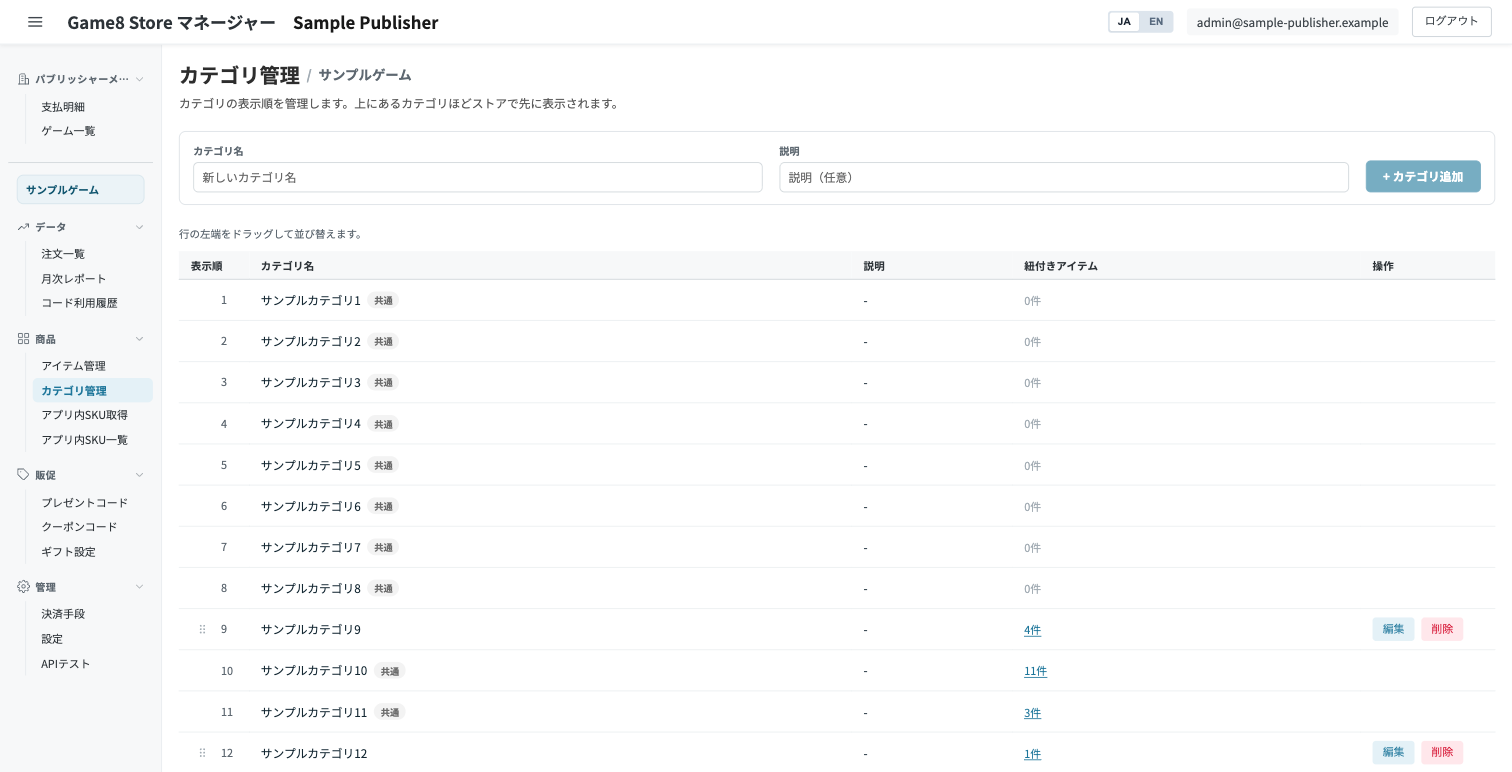
On this screen, you can create categories and change their display order. To create one, enter a "Category Name" and "Description" and click [+ Add Category]. To reorder, use the arrows to the left of each category; categories higher in the list appear first on the store.